
Getting started with the QuickBooks Online login process is the crucial first step in unlocking the full power of cloud-based accounting. Whether you’re a small business owner, a freelancer, or a growing enterprise, logging into your QuickBooks Online account gives you real-time financial insights, access to invoicing and payroll tools, and the freedom to manage your books from anywhere.
In this article, we’ll walk you through everything you need to know about QuickBooks Online login — from creating your account and troubleshooting access issues, to best practices and security tips to keep your data safe. If you’re ready to leverage QuickBooks Online for efficient bookkeeping, improved financial visibility, and smarter decisions — let’s dive in.
What Is QuickBooks Online and Why Login Matters
QuickBooks Online is the cloud-based version of the software suite developed by Intuit Inc. Here’s why the login step matters:
- Access anywhere – By logging into QuickBooks Online, you gain access to your accounting data from any device with an internet connection.
- Real-time updates – Your financials update live, so you’re always working with current information.
- Secure environment – Logging in ensures you’re accessing your own secure dashboard, not a public or shared one.
- Integration readiness – Once logged in, you can integrate other tools (bank feeds, payroll, apps) smoothly.
How to Perform Your QuickBooks Online Login Step-by-Step
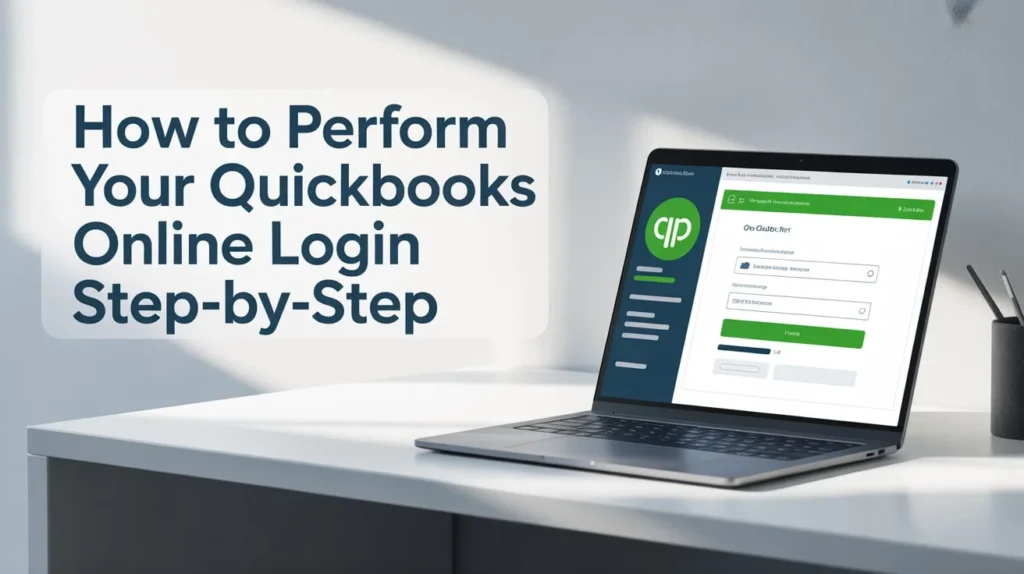
Below is a simple table that outlines the steps to log into QuickBooks Online:
StepActionNotes1Navigate to the official sign-in page (Intuit login)Example: https://www.intuit.com/sign-in/2Enter your registered email/usernameUse the same address you used when signing up.3Enter your passwordMake sure you’re typing it correctly (case-sensitive).4(Optional) Enable Two-Step VerificationAdds an extra layer of security.5Click Sign In / LoginIf you have multiple companies, select the company you want to access.
Tips for a Smooth Login
- Ensure you’re using a supported browser and that it’s up to date.
- Clear browser cache or try a private/incognito window if issues arise.
- Avoid logging in over unsecured public Wi-Fi without VPN.
- Bookmark the official login URL to prevent phishing risks.
Troubleshooting QuickBooks Online Login Issues
Even with everything in place, you may face login difficulties. Here are common issues and what to do:
Common Issues & Solutions
- Forgotten password: Use the “Forgot password” link to reset it.
- Locked account: Too many incorrect login attempts can lock you out temporarily. Wait and retry or contact support.
- Browser compatibility: Switch browsers or disable interfering extensions.
- Outage / downtime: Occasionally, QuickBooks Online experiences service disruptions — check Intuit’s status page.
- Two-Step Verification issues: If you can’t receive the code, check your mobile network or authentication app.
- Phishing attempts: Always log in via the official Intuit site to avoid scams.
Quick Fix Checklist
- Use the official login URL.
- Clear cache/cookies or try another browser.
- Verify internet connectivity.
- Reset password if needed.
- Contact Intuit support if nothing works.
QuickBooks Online Login from Mobile Devices
Logging in from mobile gives you flexibility and control on the go.
Steps to Login on Mobile
- Download the QuickBooks Online app (iOS or Android).
- Tap “Sign In” and enter your email/username and password.
- If enabled, complete two-step verification.
- Choose the correct company if you manage multiple.
- Accept any device authentication prompts.
Mobile Tips
- Ensure a stable network connection or use mobile data.
- Enable biometric login (fingerprint/face ID) for faster access.
- Keep the app updated for security patches.
- Avoid logging in on shared/public devices.
Best Practices for Secure QuickBooks Online Login
Security is crucial when working with financial data in QuickBooks Online.
- Use strong, unique passwords — Avoid reusing them across platforms.
- Enable Two-Step Verification — Adds a layer of protection.
- Monitor login history — Detect unrecognised devices or IPs.
- Use trusted networks — Avoid public Wi-Fi without a VPN.
- Sign out after use — Especially on shared computers.
- Educate your team — Ensure everyone follows login security best practices.
Managing Multiple Company Logins in QuickBooks Online
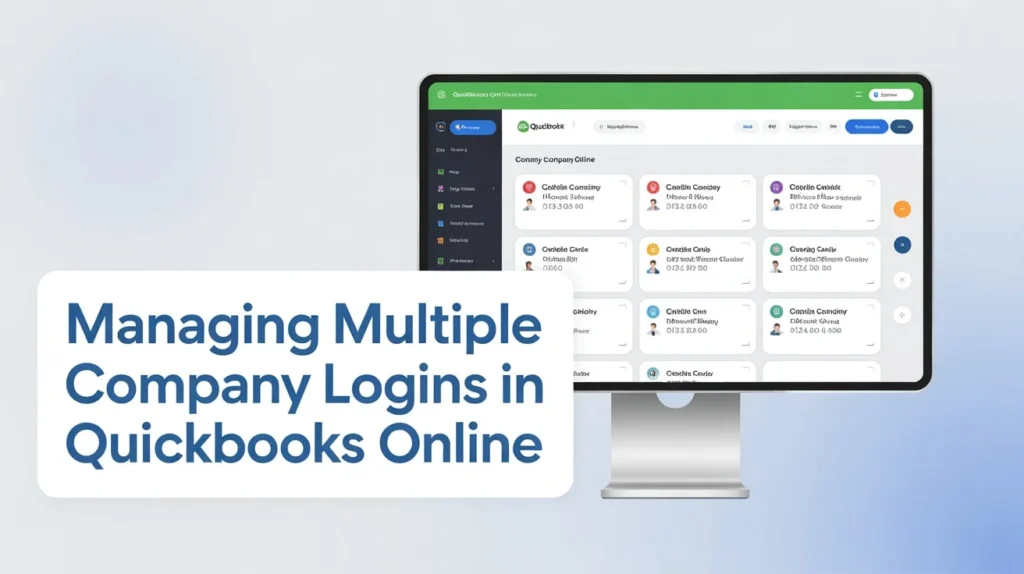
If you handle multiple businesses or clients, managing logins efficiently becomes vital.
Strategy for Multi-Company Management
- Use one primary Intuit account that has access to multiple companies.
- Assign roles & permissions per user.
- Use a password manager for secure credential storage.
- Maintain an audit trail of changes and logins.
Benefits
- Centralised access for accountants or managers.
- Enhanced security via controlled permissions.
- Easier navigation between companies.
Internal Linking Suggestions for SEO
While this article focuses on QuickBooks Online login, you can internally link to related content such as:
- How to set up your QuickBooks Online account
- QuickBooks Online vs. QuickBooks Desktop
- QuickBooks Online Payroll integration
- QuickBooks bank feed setup guide
This strategy boosts SEO and improves site engagement.
QuickBooks Online Login FAQ Overview
QuestionShort AnswerCan I log in from any device?Yes, on computer, tablet, or mobile with internet access.What if I forgot my username?Use the “Forgot username” option via login page.Is Two-Step Verification required?Not mandatory, but highly recommended.Can multiple users log in to the same company?Yes, with appropriate permissions.What happens if the service is down?You’ll need to wait until Intuit resolves it.
Why QuickBooks Online Login Should Be Quick and Simple
A seamless login experience saves time and increases productivity.
- Reduces technical frustration.
- Encourages frequent software use.
- Builds user confidence.
- Minimises downtime and support requests.
When login is effortless, bookkeeping becomes enjoyable and efficient.
QuickBooks Online Login and User Permissions
When you log in, your access depends on your role.
RoleTypical AccessNotesAdmin/OwnerFull control over settings, users, and financesIdeal for business owners.AccountantBookkeeping and reporting accessExternal accountant role.Standard UserBilling and invoicing rightsFor team members.Reports OnlyView-only access to financial dataSuitable for management.
Understanding roles prevents confusion and strengthens data security.
Speeding Up Your QuickBooks Online Login
Optimize your login for speed and convenience:
- Enable “Remember Me” on trusted devices.
- Bookmark the official login page.
- Use a password manager for autofill.
- Enable biometric login on mobile.
- Disable heavy browser extensions.
Common QuickBooks Online Login Errors & Fixes
Common Errors
- “Invalid login credentials” → Check and reset password.
- “Account locked” → Wait or contact support.
- “Access denied” → You may lack permission for that company.
- “Service unavailable” → Possible outage, try later.
- “Session timed out” → Log in again after inactivity.
Quick troubleshooting prevents disruptions in workflow.
Transitioning to QuickBooks Online: Login Planning for Businesses
Switching from desktop to cloud accounting requires planning:
- Create your Intuit account.
- Subscribe to your QuickBooks Online plan.
- Set up your company profile.
- Invite users with defined roles.
- Provide login training and internal guidelines.
- Track activity through audit logs.
This structured login approach ensures smooth adoption for your entire team.
Secure Logout & Session Management
Logging out safely is just as important as logging in.
Logout Tips
- Always click “Sign Out” instead of closing the tab.
- Clear browser history on shared devices.
- Monitor active sessions for unknown logins.
- Use automatic timeouts for inactive sessions.
Secure logout protects sensitive business data from unauthorized access.
Keeping Your Login Credentials Organized
For small business owners, credential management saves headaches.
Best Practices
- Use a password manager for all credentials.
- Label entries clearly (e.g., “QuickBooks Online – Company A”).
- Update passwords regularly.
- Store recovery details securely.
- Track who has login access and why.
The Role of Login Analytics & Access Auditing
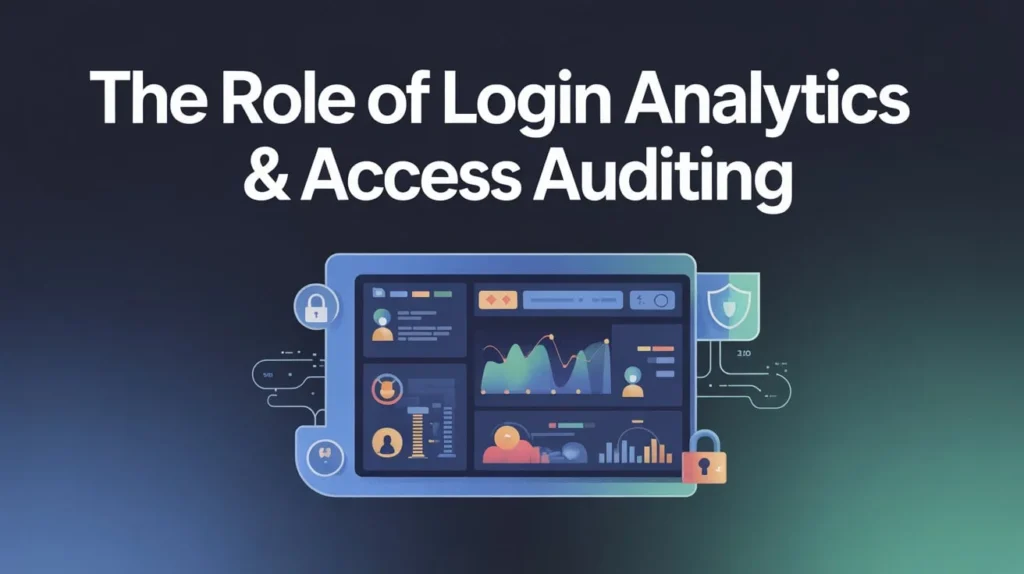
After logging in, use QuickBooks’ built-in tools to track access:
- Monitor login times and IPs for security anomalies.
- Watch failed login attempts to catch hacking attempts.
- Review user role changes for internal control.
- Use audit logs to trace post-login actions.
Regular auditing protects both your business data and financial reputation.
QuickBooks Online Login for Accountants & Bookkeepers
Accountants often access multiple client dashboards via QuickBooks Online.
Key Tips
- Use the official “Accountant” login for cross-client access.
- Keep credentials separate for each client.
- Enable MFA (Multi-Factor Authentication).
- Maintain clear documentation for each login.
- Regularly review client access policies.
These habits streamline workflows while safeguarding data.
Login Automation & Single Sign-On (SSO)
Large teams can automate access using SSO tools.
Advantages of SSO Integration
- One secure login for all connected apps.
- Reduced password fatigue.
- Centralized identity management.
- Improved compliance and control.
Ask your IT team to set up SSO with QuickBooks for enhanced enterprise security.
Future of QuickBooks Online Login & Security Trends
Technology is shaping the next era of secure access. Expect:
- Wider use of biometric authentication.
- AI-based login anomaly detection.
- Deeper Identity and Access Management (IAM) integration.
- Zero-trust network principles for SMBs.
- Stronger encryption and device-level trust.
Staying informed ensures your business remains protected as QuickBooks evolves.
Summary Table: QuickBooks Online Login Best Practices
PracticeWhy It MattersQuick TipStrong passwordPrevents credential theftUse a password managerTwo-Step VerificationAdds extra protectionEnable in settingsRole managementControls accessReview quarterlySecure logoutPrevents hijackingAlways sign outLogin monitoringDetects threatsReview audit logs monthly
FAQs
How do I reset my QuickBooks Online login password?
Go to the official Intuit login page, click “Forgot password”, and follow prompts to verify your identity and reset your password.
Can I log into QuickBooks Online from multiple devices?
Yes — you can access QuickBooks Online on multiple devices using the same credentials, as long as each device is secure.
What should I do if my login is locked out?
Wait for auto-unlock or contact Intuit Support. Ensure two-step verification is turned on to prevent future lockouts.
Is two-step verification required for QuickBooks Online login?
It’s optional but highly recommended to secure your financial data from unauthorized access.
How can I change user login permissions after logging in?
Go to Settings → Manage Users, select the user, and edit their role or permissions. Always follow the least-privilege principle.
Conclusion
The QuickBooks Online login process is more than just entering your credentials — it’s your gateway to streamlined bookkeeping, secure data management, and better business insights. By adopting the login strategies, security tips, and troubleshooting solutions covered here, you can enjoy smooth, safe access every time you sign in.
Stay proactive about your login habits — update passwords, enable Two-Step Verification, and review user permissions regularly. With these practices, you’ll ensure your QuickBooks Online experience remains efficient, reliable, and secure. Log in with confidence — your business deserves it.